Depositing to Minerva Access (two step process)
Summary
| Audience | Brief |
|---|---|
Academic Staff | This guide demonstrates how files can be deposited from Elements to Minerva Access via a two-step process where the metadata is deposited in the first step, and the file(s) in the second step. This method can be used as a work-around if the one-step process is unsuccessful. |
Background
The Principles for Open Access to Research Outputs at Melbourne state that researchers are expected to deposit the post peer reviewed and corrected version of their published research (the Author Accepted Manuscript) in the Institutional Repository or an accredited subject repository within three months of publication.
This applies to refereed journal articles, conference publications, authored books and book chapters. For other output types, the University encourages these to be made openly accessible in Minerva Access where possible and practical (e.g where copyright permits).
Further information is available here.
Steps
- Login to Elements and then go to the 'My claimed research outputs' screen via the menu option on the homepage.


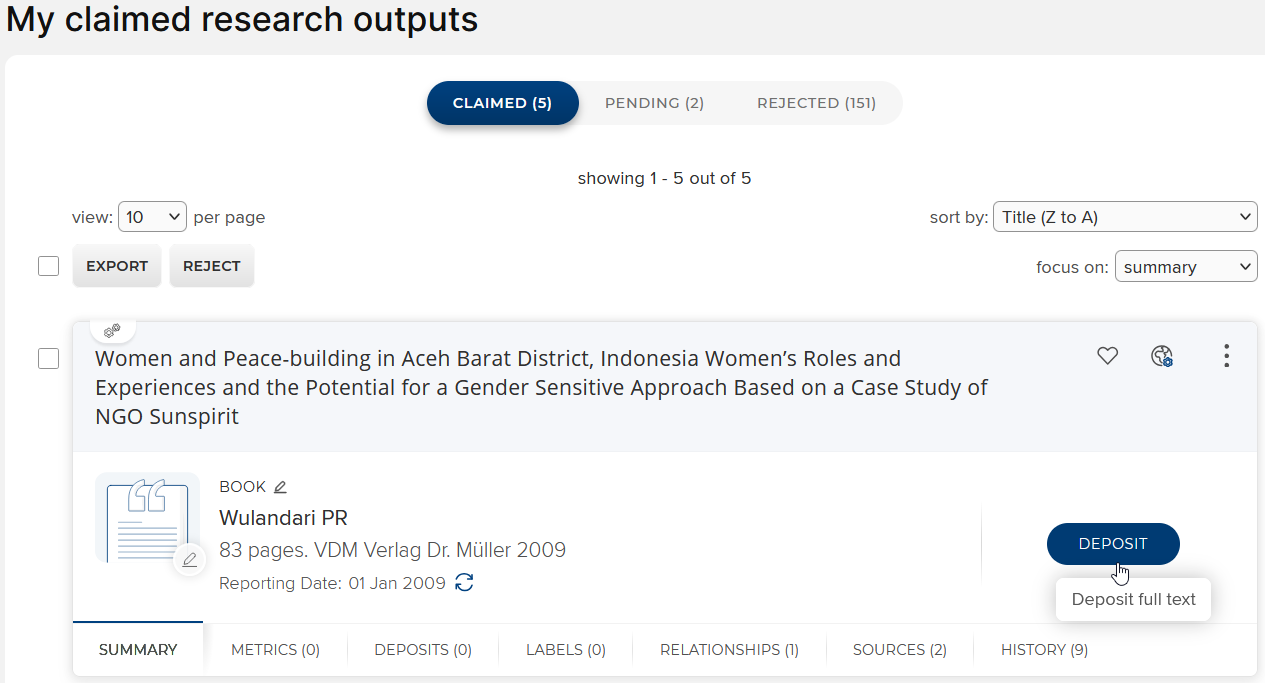
2. Find the research output that you wish to deposit and click on the Deposit button.
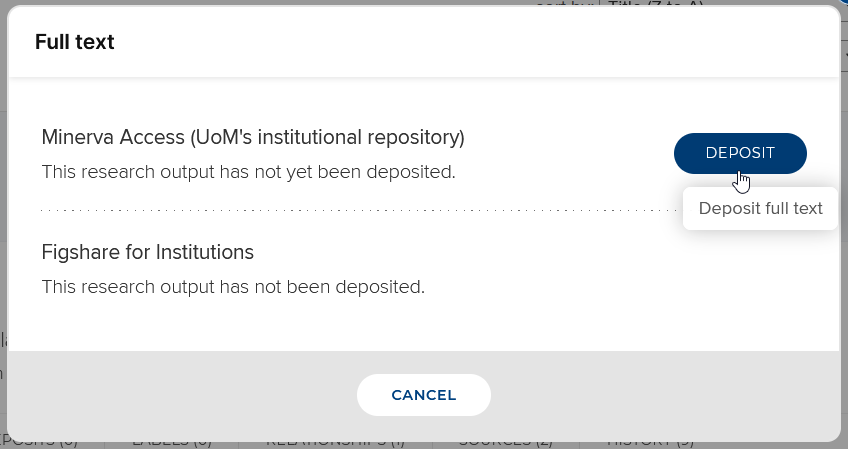
Elements is connected to two repositories - Minerva Access and Figshare, but it is only possible to deposit to Minerva Access. Clikc Deposit again, to proceed.
3. Click 'Deposit Without Files'.

4. Specify an embargo period and reuse licence if known.
Add any internal notes regarding the deposit in 'Deposit comment' field (eg: Deposited on behalf of Prof Smith) and click ‘Deposit:

5. The deposit should complete successfully. Now return to the research output and click Deposit again.
6. As there is already a metadata deposit in Minerva Access, you will be presented with the options of viewing the existing deposit or redepositing. Click 'Redeposit'.

7. Select the file you wish to deposit. From the dropdown list select the version of the file (it is mandatory to select the version) and click ‘Use this file’.

8. Add any internal notes regarding the deposit in 'Deposit comment' field, and then click 'Redeposit'.

9. The redeposit should complete successfully.